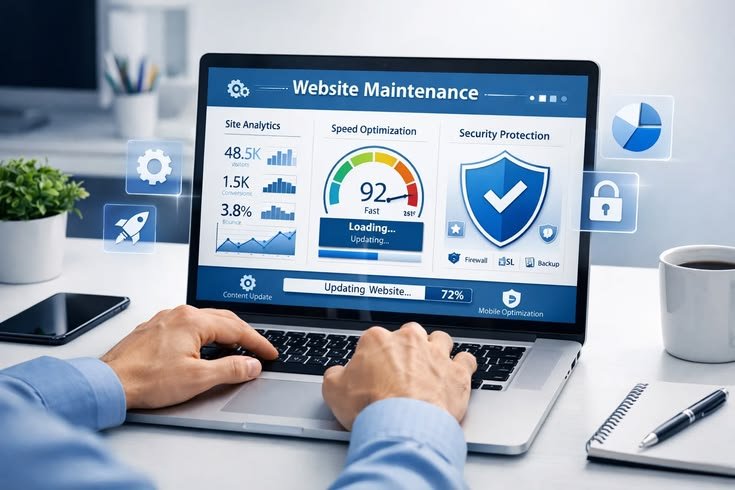


A WordPress website can look normal while forms fail, backups stop running, plugins become vulnerable or performance slowly declines. For a service business, those problems can quietly reduce trust and block enquiries.
This WordPress maintenance checklist covers the recurring tasks that keep a website secure, current, measurable and useful. The right schedule depends on website complexity, traffic, integrations and how important the site is to lead generation.
Why WordPress Maintenance Matters
WordPress core, themes and plugins change over time. Hosting environments, APIs, browsers, forms and third-party tools also change. Maintenance is the process of checking that these moving parts continue to work together.
Consistent care helps a service business:
- Reduce exposure to known vulnerabilities
- Recover more quickly when something goes wrong
- Prevent broken forms and missed enquiries
- Maintain speed and mobile usability
- Keep SEO settings and indexation healthy
- Plan improvements instead of reacting to emergencies
Daily or Automated Checks
Monitor uptime
Use an external monitoring service to check whether the website is reachable. Alerts should go to someone who can investigate hosting, DNS, SSL or application issues.
Monitor security events
Review high-priority alerts from the security layer, hosting provider and firewall. Avoid treating every blocked login attempt as an emergency; focus on successful changes, malware findings, vulnerable software and unusual administrator activity.
Confirm backups are running
An automated backup notification is useful, but a successful status does not prove the archive can be restored. Keep recent off-site copies and test restoration periodically.
Weekly WordPress Maintenance Checklist
1. Review available updates
Check WordPress core, plugins and themes. Read important changelogs and compatibility notes, especially for ecommerce, forms, page builders, multilingual tools and custom functionality.
2. Create a fresh backup before updates
Back up the database and files before applying changes. Confirm where the backup is stored and how long copies are retained.
3. Apply updates in a controlled order
For simple sites, routine updates may be completed directly during a low-traffic period. Higher-risk websites should use staging, especially when updates affect payments, memberships, booking or custom code.
4. Test the homepage and key service pages
Review desktop and mobile layouts. Check navigation, images, buttons, accordions, popups and important internal links.
5. Test every lead form
Submit the form using a real test. Confirm validation, success message, email delivery, CRM entry, notifications and the thank-you or booking step. A form can appear normal while messages fail behind the scenes.
6. Test phone and booking actions
Click phone links on mobile and complete a test booking when appropriate. Verify embedded calendars and third-party scripts still load.
7. Review comments and spam
Moderate legitimate comments and remove spam. If comments are not part of the content strategy, disable them on content types that do not need discussion.
Monthly WordPress Maintenance Checklist
Review website performance
Check loading behaviour on representative pages and devices. Look for oversized images, new scripts, slow third-party tools, layout shifts and caching problems. Do not rely on one speed score; review real user experience and key templates.
Check analytics and conversions
Compare forms, bookings and tracked calls with analytics events. Investigate sudden drops or spikes. Tracking can break after form, theme, consent or Tag Manager changes.
Review Search Console
Check indexation, sitemap processing, manual actions, security issues and major changes in clicks or impressions. Not every excluded URL is a problem, but important service pages should remain indexable.
Scan for broken links
Fix important internal and external links. Redirect removed pages when a useful replacement exists; do not create irrelevant redirects only to eliminate a report warning.
Review users and permissions
Remove accounts that no longer need access, reduce unnecessary administrator roles and confirm that each user has an appropriate permission level.
Check backup retention
Confirm off-site backups cover the required time window. A website may need daily database backups and less frequent full-file backups depending on how often content or orders change.
Clean unnecessary data carefully
Remove unused drafts, spam, expired transients and old revisions when appropriate. Avoid aggressive database-cleaning tools without a current backup and an understanding of what will be deleted.
Quarterly Maintenance Tasks
Test a backup restoration
Restore a backup to a safe environment and confirm the website loads, logins work and important data is present. A backup strategy is incomplete until recovery has been tested.
Audit plugins and themes
Remove unused software and replace abandoned or unsupported tools. Every active component adds maintenance and potential security risk.
Review administrator security
Confirm strong unique passwords, multi-factor authentication where practical, limited login attempts, appropriate firewall settings and secure hosting access.
Recheck mobile and accessibility basics
Test keyboard navigation, labels, focus states, contrast, text resizing and tap targets on important templates. Content and plugins can introduce accessibility issues after the initial build.
Review SEO structure and content
Check titles, descriptions, headings, canonical tags, internal links and schema on important pages. Update outdated service information and improve pages receiving impressions without relevant clicks.
Review conversion journeys
Walk through the website as a prospect. Confirm services are clear, proof is current and the next step is easy to find. Maintenance should protect business performance, not only software health.
Annual WordPress Maintenance Tasks
- Renew the domain, hosting, SSL and essential licences
- Review privacy, cookie and legal content with appropriate professional guidance
- Audit the full site architecture and outdated pages
- Review hosting capacity and PHP support
- Update team, services, case studies and business information
- Evaluate whether integrations still fit the operational process
- Document account ownership and recovery procedures
- Plan the next year’s content and conversion priorities
A Safe WordPress Update Process
- Review the updates and known compatibility concerns.
- Create a current off-site backup.
- Use staging for high-risk changes.
- Update one logical group at a time.
- Clear relevant caches.
- Test desktop and mobile layouts.
- Submit forms and check integrations.
- Review logs for errors.
- Document what changed and the result.
DigiFly’s WordPress maintenance services in Canada cover planned updates, backups, security checks, performance care and recurring testing for service-business websites.
What Should a Maintenance Report Include?
A useful report should explain:
- Updates completed
- Backup and uptime status
- Security findings requiring action
- Forms and conversion paths tested
- Performance or indexation changes
- Issues found and resolved
- Recommendations for the next period
Reports should prioritize business impact instead of listing dozens of automated warnings without context.
Common WordPress Maintenance Mistakes
- Updating without a current backup
- Assuming automated backups are restorable
- Keeping unused plugins active
- Ignoring form and email-delivery tests
- Giving every user administrator access
- Installing multiple overlapping security or caching plugins
- Optimizing only a speed score
- Making live code changes without documentation
- Waiting for customers to report broken features
Frequently Asked Questions
How often should WordPress be maintained?
High-priority security, uptime and backup checks should be continuous or frequent. Updates and functional tests are commonly reviewed weekly, with deeper performance, SEO and access audits monthly or quarterly.
Can WordPress update automatically?
WordPress can automate many updates, but automation should be paired with backups, monitoring and post-update testing. High-risk plugins or custom sites may need a controlled process.
Do small websites need maintenance?
Yes. A smaller site has fewer components, but it can still experience vulnerable plugins, failed forms, expired licences, spam, hosting issues and broken tracking.
How much does WordPress maintenance cost?
Pricing depends on website complexity, update risk, response expectations, ecommerce, integrations and included development time. A simple brochure site costs less to maintain than a custom or transactional website.
What is the difference between hosting and maintenance?
Hosting provides the server environment. Maintenance manages the WordPress application, updates, backups, testing, security, performance and operational reliability. Some hosting plans include limited maintenance features, but responsibilities should be confirmed.
Protect the Website That Supports Your Business
A maintenance checklist turns website care into a predictable process. The objective is not to update software for its own sake; it is to keep the customer journey reliable and reduce avoidable business risk.
If you need help establishing a dependable maintenance routine, contact DigiFly. We can audit the current WordPress setup and recommend a realistic support plan.